Creating Books with your document
The Content Creator (users with Content Creation privileges), Administrator (users with Administrative privileges), or any user with permission to create books can create it using a document. When the book is created, the system automatically structures the content from the uploaded document. However, images included in the document are not added to the generated book. If required, users must upload the images separately and add them to the appropriate unit in the book structure.
Navigating to Book Creation
- Click Create book > With your document.
- Go to Manage > Books.
- You will be navigated to the Books page.

Entering Course details
You will be navigated to the Create course page to enter the course’s basic information.
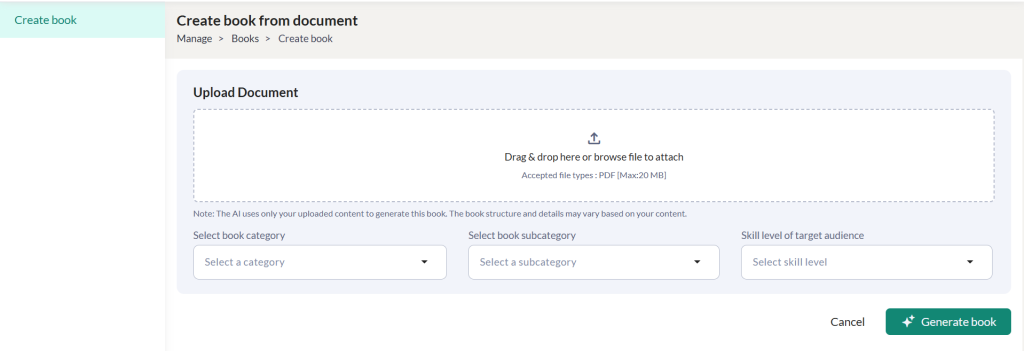
In the Create Course section:
- Upload document fo AI book creation.
- Select the book category, and sub-category
- Select the skill level of the target audience
- Click Generate book button to navigate to the Select title section
Note: The AI uses only your uploaded content to generate this book. The book structure and details may vary based on your content.
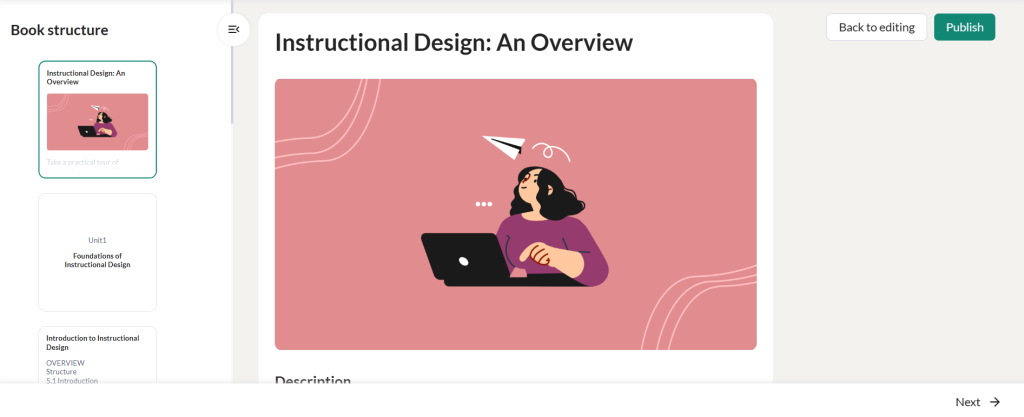
Generating Book
To edit the book, click on the Back to editing button. Click on the Publish button to publish the book. A confirmation message appears based on which you can publish the book.
Note: Course visibility is governed by the roles and permissions set via Administration > Settings > Roles and Permissions.
- Users with All permissions can view all books created by their group members.
- Users can always view books they have personally created under Manage Books.
Book Actions
- You can view the book name, available for, last modified by, book status and various actions that can be performed for this book.
- You can search for a particular book and also filter the book based on the book category, book status, book level, and available for.
- Click on the Preview icon to get a preview of the book.
- To edit the book details, click on the Edit icon.
- Click on the Settings icon and click:
- ‘Unpublish’ option to unpublish this book.
- ‘Duplicate’ to make a duplicate copy of this book.
- ‘Archive’ option to archive this book.
- ‘Delete’ option to delete this book.
Note: All the above actions can be performed if the user has the required roles and permissions.