Security Settings
To keep your SkillLake account secure, your organization may require an extra verification step (Two-Factor Authentication 2FA) during sign-in. After entering your username and password, you will enter a one-time verification code sent to your registered email address or mobile device.
Administrators can configure the content protection for the learning resources – self-paced courses, instructor-led courses, snippets, events and books.
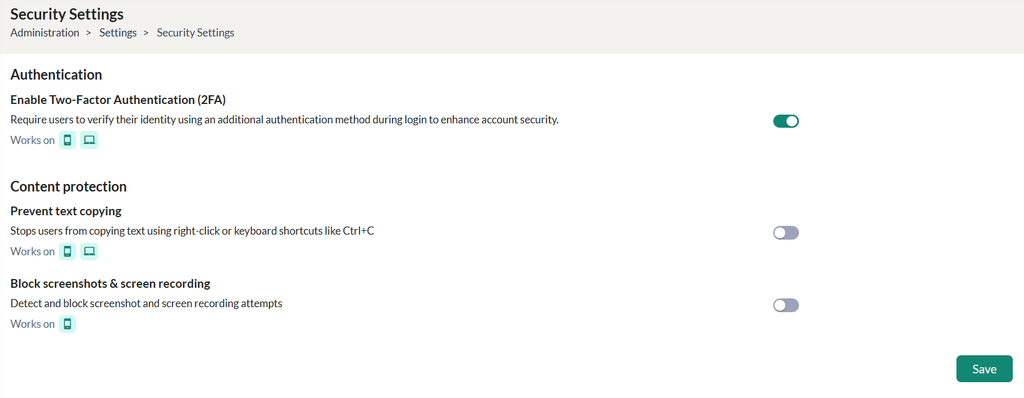
- Toggle the Enable Two-Factor Authentication (2FA) option to enable the one-time verification code after entering your login credentials.
Note:
- As a prerequisite, your organization’s email settings must be configured with SMTP configuration from the Settings > Email Configuration.
- When the learner logs in to Skill Lake using his registered email id and password, a 6-digit verification code will be sent to this email address, if this 2FA configuration is enabled. Enter the 6-digit code in the 2FA verification page and click the Verify button. Once authenticated, you will be redirected to the Skill Lake landing page.
- Toggle the Prevent text copying option to prevent the text copying from all the learning resources. This feature is available in the Web and Mobile Apps.
- Toggle the Block screenshots and screen recording option to prevent taking screenshots and screen recording of the learning resources. This feature is available in the Mobile App.